
Studio testing
Test registered Runiq agents through the embedded Studio.
Registered agents appear in the embedded Runiq Dashboard through runtime metadata.
The dashboard is served by the same ASP.NET Core application. It can list agents, show their instructions and attached tools, run chat requests, stream assistant output, and inspect tool call details.
Enable Studio
The default path is /runiq. If you set Path = "/dashboard", open /dashboard in the same host application.
What Studio reads
Agent visibility comes from runtime metadata and execution events.
| Dashboard area | Runtime source |
|---|---|
| Agents list | Registered Agent instances from AddRuniqServer. |
| Agent details | Agent metadata: id, name, instructions, model, reasoning effort, verbosity, tools, and context spaces. |
| Chat playground | /api/agents/{agentId}/chat under the dashboard path. |
| Streaming output | assistant_delta, tool events, context events, completion, and failure events. |
| Tool details | Tool metadata and execution events from attached typed tools. |
Studio examples
Registered agents list

The dashboard reads registered agents from the Runiq runtime metadata. If an agent is registered with AddRuniqServer, it appears in the agents list.
This list is the first place to check whether the application host discovered the agent correctly. Developers can confirm the agent name, provider, model, instructions, and whether the agent is available for testing inside the dashboard.
If an agent is missing here, the issue is usually registration-related: the agent was not added to the Runiq server options, or the application host is not running with the expected configuration.
Agent chat playground

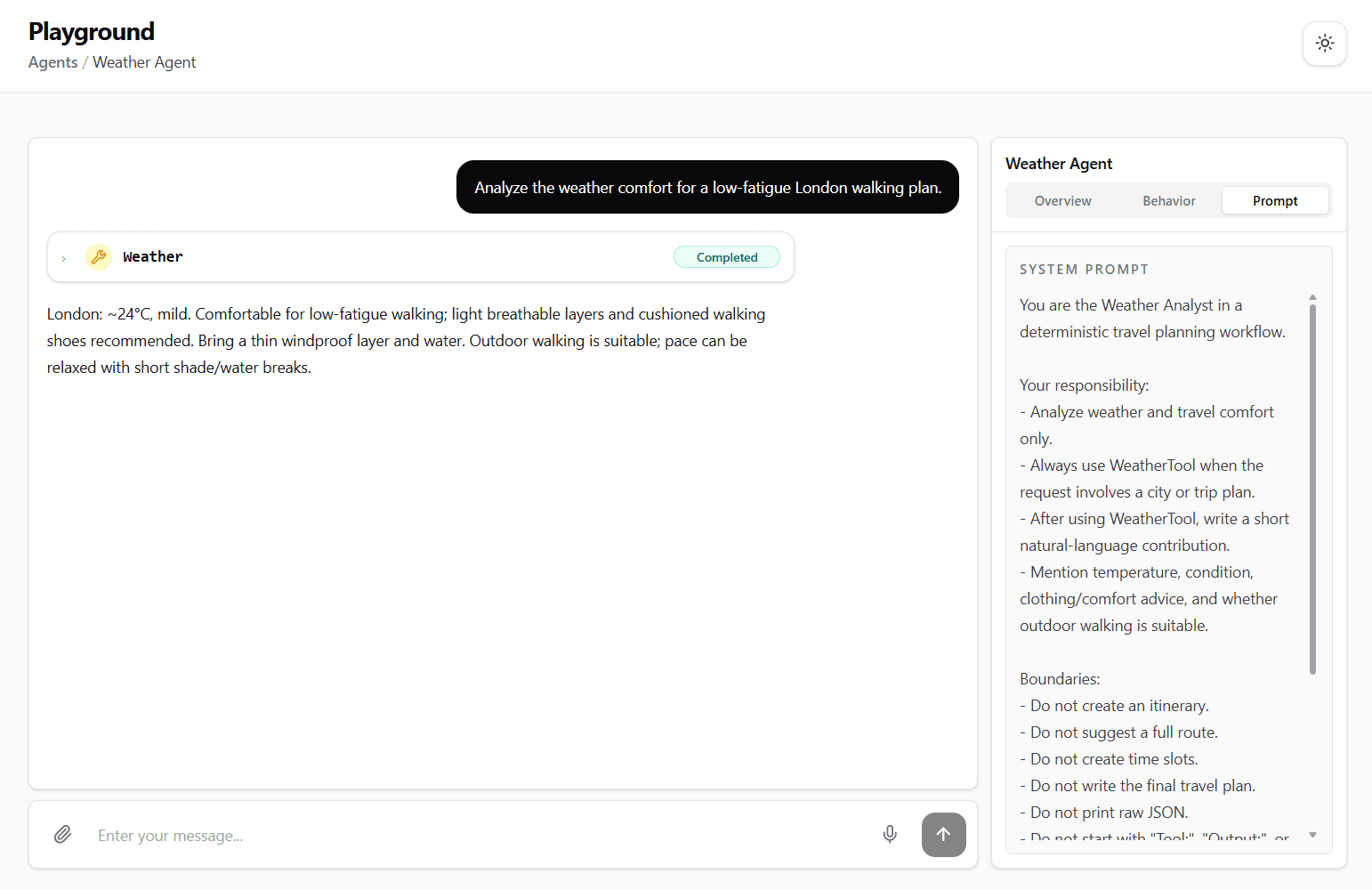
Each agent can be tested in a chat playground. The playground sends a user message to the selected agent using the same runtime configuration the application registered for that agent.
When the agent has tools attached, Runiq sends the available tool definitions to the LLM together with the agent instructions and the user message. The LLM decides whether the user request requires one of those tools. If it does, the model returns a tool call request instead of a final answer.
Runiq then executes the requested typed .NET tool, captures the result, and sends that result back into the agent run. The LLM uses the tool result to continue and produce the final assistant response.
The dashboard makes this loop visible:
- the user input sent to the agent,
- streamed assistant output,
- requested tool calls,
- tool arguments inferred by the model,
- typed .NET tool results,
- the final response returned by the agent.
This is the important part of Studio testing. Developers can see not only the final answer, but also whether the agent chose the expected tool, whether the inferred arguments were correct, whether the tool returned the expected shape, and whether the final response used the tool result properly.
System prompt

The agent instructions used in the .NET agent definition can be inspected from the dashboard without going back to the source code.
This is useful when validating what the runtime actually received. Developers can confirm the system prompt, model, provider, attached tools, and other runtime settings from the same surface used to test the agent.
Agent behaviour

The dashboard lets developers test how an agent behaves during a run.
Stream mode shows the response as runtime events arrive. This is useful for debugging because developers can observe assistant deltas, tool calls, tool results, completion events, and failures while the run is still happening.
Result mode focuses on the final completed output. This is useful when the developer only needs to verify the answer returned to the caller, without inspecting every intermediate event.
Model Behavior controls how the selected agent should behave for the test run. These settings help developers validate the agent under different runtime conditions, such as how much reasoning effort the model should use or how verbose the final response should be.
Together, chat mode and Model Behavior make it easier to understand whether an issue comes from the agent definition, the prompt, the model settings, a tool call, or the final response formatting.
MCP tools in Studio
The dashboard can also be used to inspect and test MCP tools exposed by the same host application.
MCP tools list

The MCP tools list confirms that the host application discovered the expected tool methods and exposed their names, descriptions, and input contracts to MCP clients.
Use this view when validating a new service-backed MCP tool. If a tool is missing, check that the application is running, AddRuniqMcp() is registered, the endpoint is mapped with MapRuniqMcp(), the tool class has [McpServerToolType], and the method has [McpServerTool].
MCP tool run

The run view lets developers provide input values and execute the selected MCP tool through the same runtime boundary that MCP clients use.
This is useful for checking the full flow before connecting external clients: dependency injection, input binding, service execution, typed results, and error handling all run through the hosted application.