

Testing agents
Use Studio to inspect and debug registered Runiq agents.
Studio shows registered agents from runtime metadata.
Use it to verify that the agent you defined in code is actually visible to the runtime with the expected id, name, instructions, model, tools, Context Spaces, reasoning effort, and verbosity.
Agent example
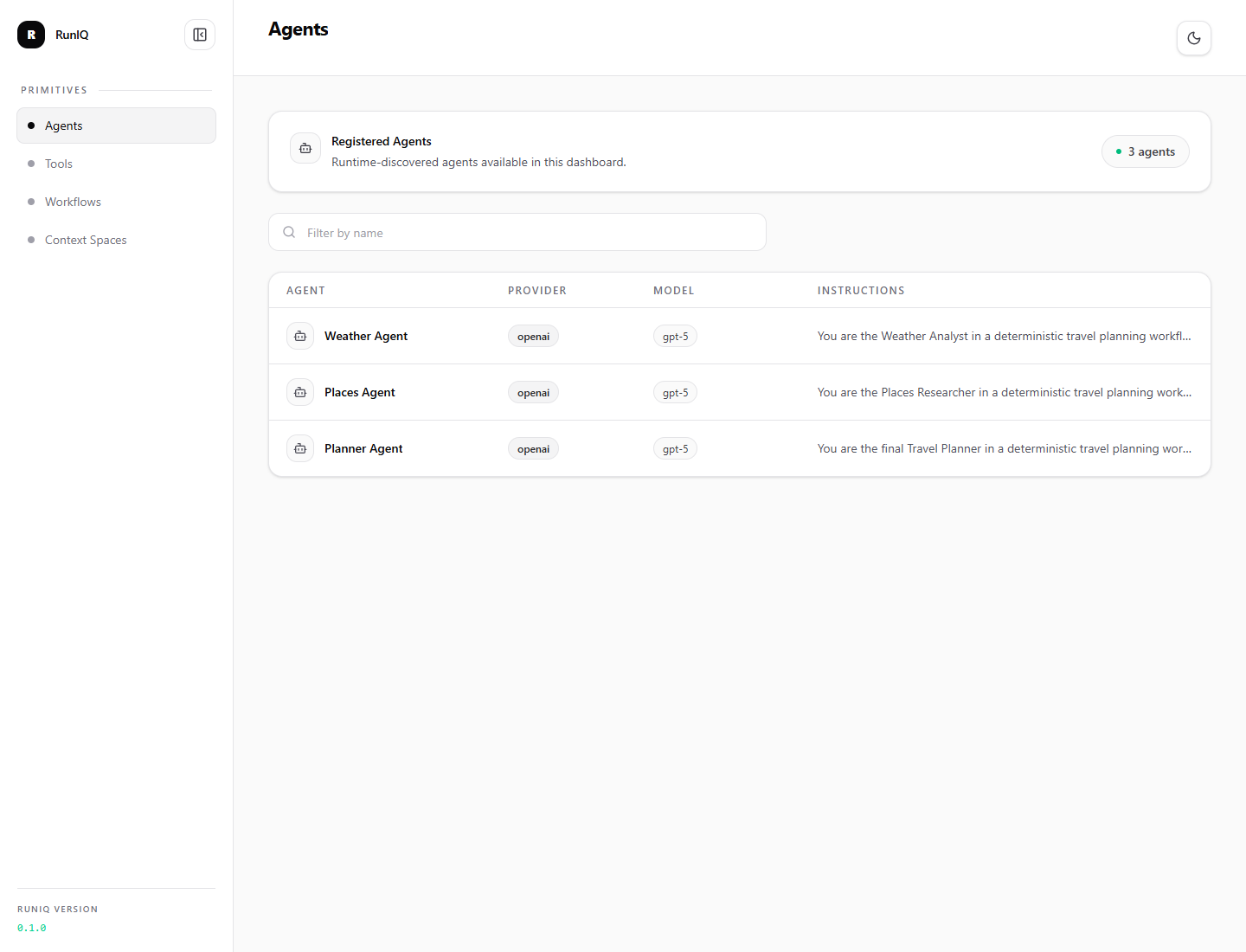
This view comes from the Runiq.WorkflowTravelPlanner sample and shows the agents registered by the running ASP.NET Core app. Studio is not showing a separate registry; it is reading the runtime metadata produced by the same .NET registrations your application uses.
What to test
When building an agent, use Studio to check:
- the agent appears in the Agents list,
- the id is stable and route-friendly,
- the display name is clear,
- the model and provider values are correct,
- instructions match the agent's responsibility,
- only the intended tools are attached,
- only the intended Context Spaces are attached.
Chat testing flow
Use sample applications as small, inspectable systems rather than product templates. In this case, Weather Agent, Places Agent, and Planner Agent make the registration model easy to see. In a business application, those rows might be Triage Agent, Policy Review Agent, or Approval Summary Agent.
What Studio helps catch
Studio is useful when an agent:
- appears with the wrong id or name,
- has missing or stale instructions,
- is using the wrong model,
- cannot call the expected tool,
- calls a tool with bad arguments,
- gives a final answer that ignores tool output,
- claims source context was used when no relevant source was retrieved.
Without Studio, many of these problems look like "the model gave a bad answer." Studio makes the runtime path visible.